Firmware Flashing to the Pico
Tools and Parts Needed:
- Computer
- USB-A to micro-USB cable
- PCB
- NTC100K Thermistor
- DHT11 Humidity Sensor
Uploading and Configuring Firmware:
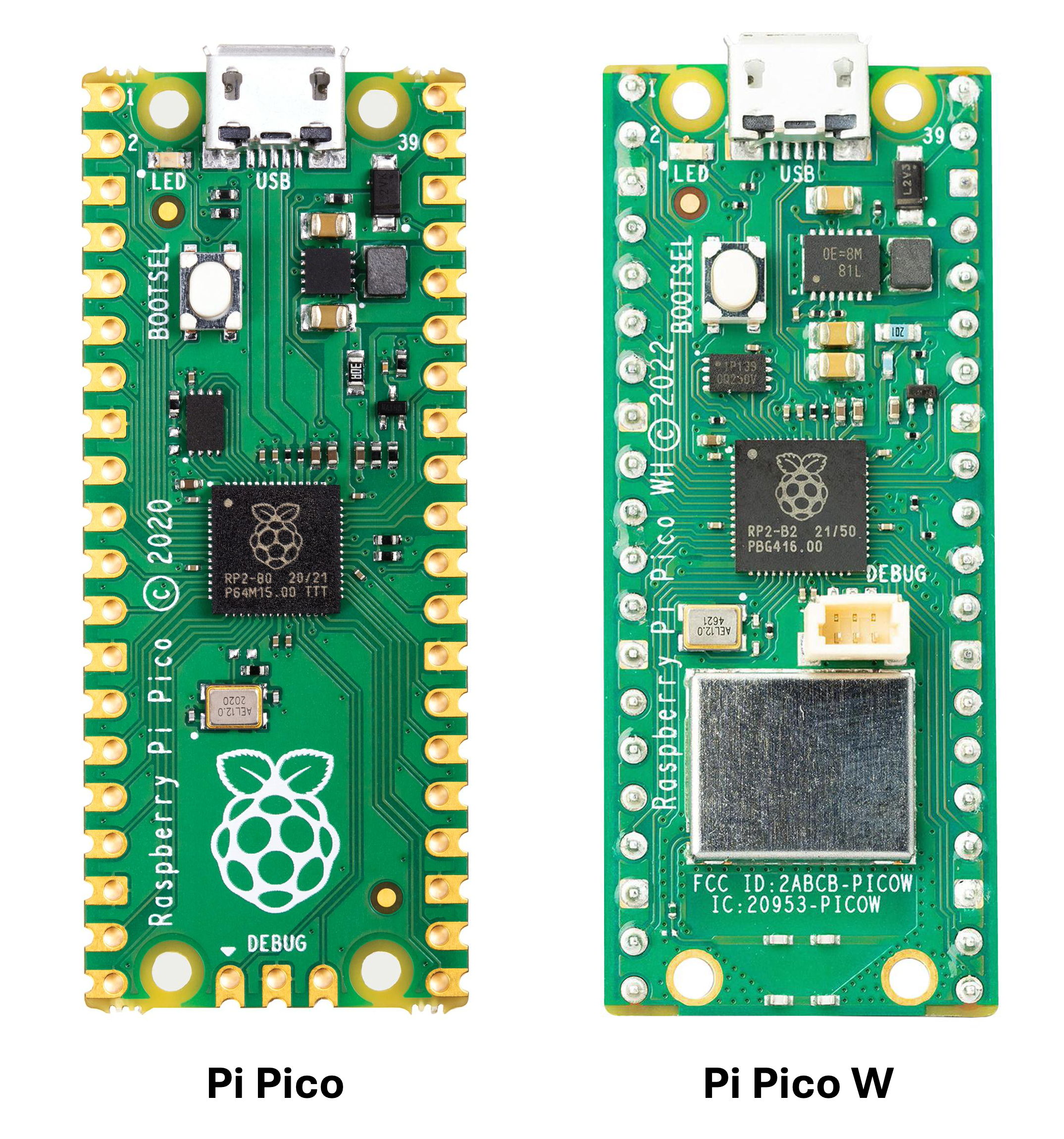
- The firmware for the Raspberry Pi Pico on your PCB is based on a programming language called CircuitPython. To upload our code we need to prepare the Pico to accept CircuitPython code. If you’re using a Pico, download this, and if you’re using a Pico W, download this. If you’re unsure which Pico you have, check the picture below.
- Now click here to download the firmware.
- Keep the BOOTSEL button pressed as you connect the Pi Pico to the computer. The button is visible in the images above!
- The Pico should now show up as a drive in your computer’s file manager under the name “RPI-RP2” or something similar.
- Drag the Circuitpython (.uf2) file to the “RPI-RP2” drive.
Note
Make sure you drag the CircuitPython file and not the firmware.
- The drive should reset and should now appear as “CIRCUITPYTHON”.
- Now that our Raspberry Pi Pico is set up to run CircuitPython code, we need to install some libraries (bundles of additional code) that our code relies on. Download the adafruit libraries from here: https://circuitpython.org/libraries. Make sure they match the version of the circuitpython download from step 1. Once downloaded unzip and copy these two libraries: adafruit_onewire and adafruit_ds18x20.
- In the CIRCUITPYTHON drive, open the lib folder if it exists, create one if it does not. In the lib folder paste the two adafruit libraries from the bundle we just downloaded.
- Finally, drag the firmware file we downloaded to the “CIRCUITPYTHON” drive. Choose to overwrite the existing code.py file if prompted about it.
Testing Firmware:
- In Visual Studio Code (VS Code), navigate to Extensions (Command/Ctrl+Shift+X) and install the ‘Serial Monitor’ extension by Microsoft
- With the Raspberry Pi Pico connected and with the code uploaded to it, open a new terminal (within VS Code) and switch to the Serial Monitor tab
- You should be seeing temperature values if all is going well. If you are not, check that:
- the Raspberry Pi Pico is showing up as a Circuitpython device,
- the “.py” file is in the base directory as you open it up,
- the code itself has print statements. e.g.:
print(f"Temperature: {temp:.1f}°C").